To install and load all packages used in this chapter, run the following code:
Introduction
Anyone working with categorical data in R will sooner or later encounter the concept of factors. For beginners, they are often confusing: Why does a column suddenly behave differently than expected? Why do the bars in the chart appear in a strange order?
This chapter explains what factors are, when you need them, and how to elegantly manipulate them with the {forcats} package.
Example Data
We again use the starwars dataset, filtered to humans:
# A tibble: 35 × 6
   name               height  mass hair_color    eye_color gender
   <chr>               <int> <dbl> <chr>         <chr>     <chr>
 1 Luke Skywalker        172    77 blond         blue      masculine
 2 Darth Vader           202   136 none          yellow    masculine
 3 Leia Organa           150    49 brown         brown     feminine
 4 Owen Lars             178   120 brown, grey   blue      masculine
 5 Beru Whitesun Lars    165    75 brown         blue      feminine
 6 Biggs Darklighter     183    84 black         brown     masculine
 7 Obi-Wan Kenobi        182    77 auburn, white blue-gray masculine
 8 Anakin Skywalker      188    84 blond         blue      masculine
 9 Wilhuff Tarkin        180    NA auburn, grey  blue      masculine
10 Han Solo              180    80 brown         brown     masculine
# ℹ 25 more rows
Character vs. Factor: The Difference
Character: Simply Text
A character variable is simply text. R treats each value as an independent string:
# eye_color is a character vector
class(humans$eye_color)
[1] "character"# Unique values (in order of first occurrence)
unique(humans$eye_color)[1] "blue" "yellow" "brown" "blue-gray" "hazel" "dark"
[7] "unknown" When we sort character values, it happens alphabetically:
Factor: Text with Structure
A factor is text plus additional information:
- Levels: The possible categories
- Order: The sorting of the levels
[1] "factor"levels(eye_factor) # The stored levels[1] "blue" "blue-gray" "brown" "dark" "hazel" "unknown"
[7] "yellow" The levels are sorted alphabetically by default. But we can define a custom order:
Why Does This Matter?
The level order affects:
- Sorting in tables
- Order in graphics (e.g., bar charts)
- Reference category in statistical models
# With character: alphabetical order
p1 <- humans %>%
count(eye_color) %>%
ggplot(aes(x = eye_color, y = n)) +
geom_col() +
labs(title = "Character: alphabetical") +
theme_minimal()
# With factor: our order
p2 <- humans %>%
mutate(eye_color = factor(eye_color,
levels = c("brown", "blue", "hazel", "dark", "blue-gray"))) %>%
count(eye_color) %>%
ggplot(aes(x = eye_color, y = n)) +
geom_col() +
labs(title = "Factor: custom order") +
theme_minimal()
# Display side by side
p1 + p2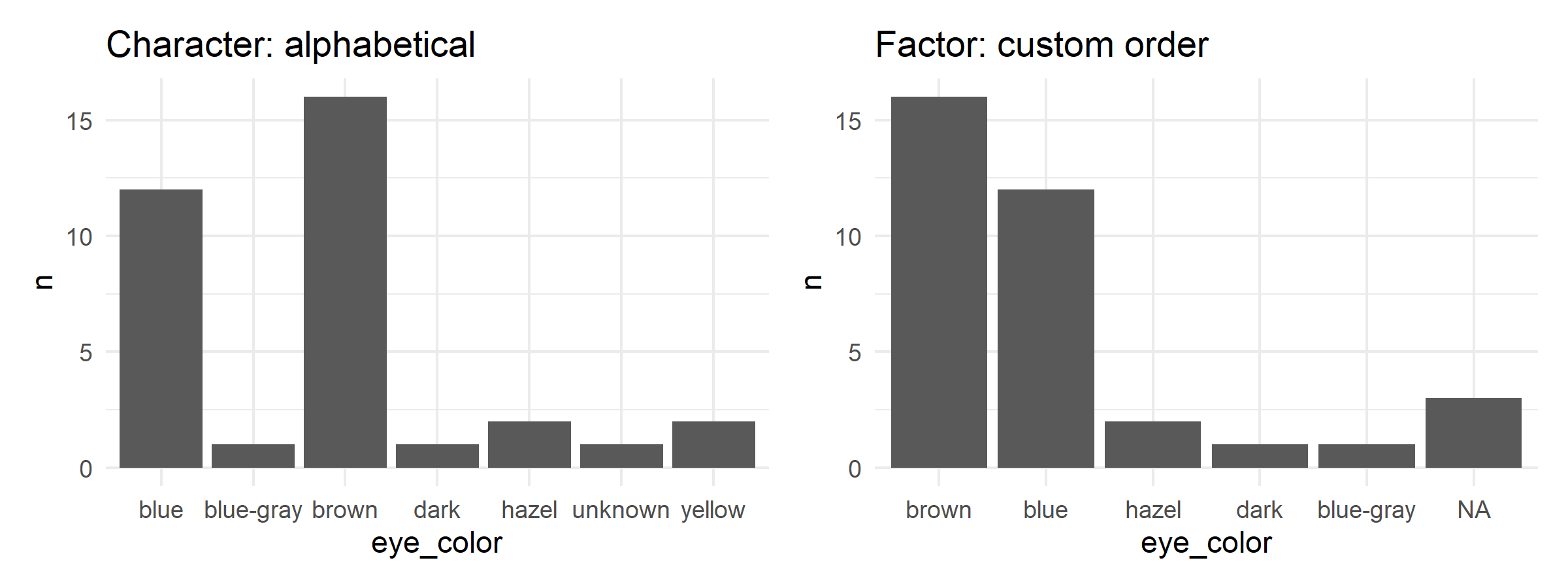
a) Check with class() whether hair_color in the humans dataset is a character or factor.
b) Convert hair_color to a factor and display the levels.
c) Create a factor for hair_color with the order: “brown”, “black”, “blond”, “auburn”, then all others.
# a) Check class
class(humans$hair_color)[1] "character" [1] "auburn" "auburn, grey" "auburn, white" "black"
[5] "blond" "brown" "brown, grey" "grey"
[9] "none" "white" [1] "brown" "black" "blond" "auburn"
[5] "auburn, grey" "auburn, white" "grey" "white"
[9] "none" Creating Factors
factor() vs. as_factor()
There are two main functions for creating factors:
[1] red blue red green blue
Levels: blue green red# as_factor(): Levels by order of first occurrence
as_factor(colors)[1] red blue red green blue
Levels: red blue green| Function | Package | Level Order |
|---|---|---|
factor() |
base R | Alphabetical |
as_factor() |
forcats | By occurrence in vector |
as_factor() is often more practical because the order of the data is preserved.
Specifying Levels Explicitly
With the levels argument, we can determine the order ourselves:
[1] medium high low high medium
Levels: high low medium[1] medium high low high medium
Levels: low medium highforcats: Manipulating Factors
The {forcats} package (part of the tidyverse) provides practical functions for factor manipulation. All functions start with fct_.
Changing Order
fct_relevel() - Manual Reordering
[1] "blue"      "blue-gray" "brown"     "dark"      "hazel"     "unknown"
[7] "yellow" [1] "brown" "blue" "blue-gray" "dark" "hazel" "unknown"
[7] "yellow" [1] "brown" "blue" "hazel" "blue-gray" "dark" "unknown"
[7] "yellow" fct_reorder() - Sort by Another Variable
Particularly useful for graphics - sort categories by a numerical value:
# Average height by hair color
hair_height <- humans %>%
  filter(!is.na(hair_color), !is.na(height)) %>%
  group_by(hair_color) %>%
  summarise(mean_height = mean(height), n = n()) %>%
  filter(n >= 2)  # Only groups with at least 2 people

# Without fct_reorder: alphabetical
p1 <- hair_height %>%
  ggplot(aes(x = hair_color, y = mean_height)) +
  geom_col() +
  labs(title = "Alphabetical") +
  theme_minimal() +
  theme(axis.text.x = element_text(angle = 45, hjust = 1))

# With fct_reorder: sorted by height
p2 <- hair_height %>%
  ggplot(aes(x = fct_reorder(hair_color, mean_height), y = mean_height)) +
  geom_col() +
  labs(title = "Sorted by height", x = "hair_color") +
  theme_minimal() +
  theme(axis.text.x = element_text(angle = 45, hjust = 1))

p1 + p2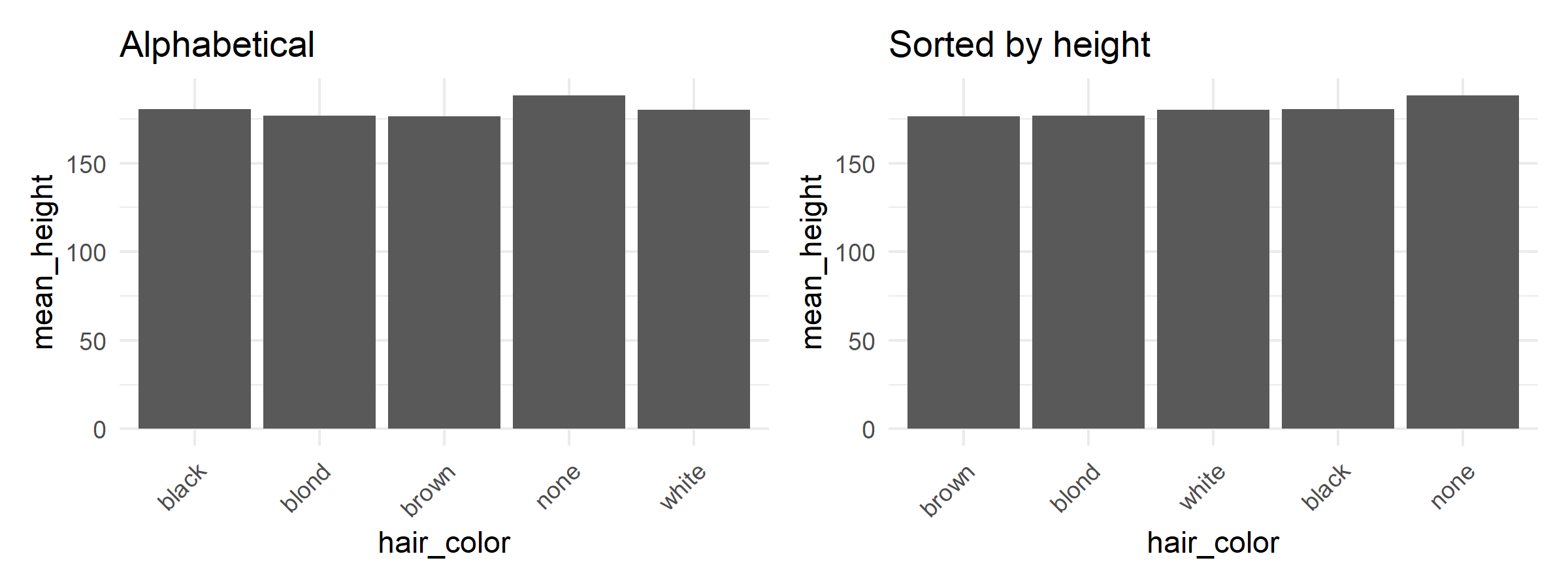
fct_infreq() - Sort by Frequency
[1] "brown"     "blue"      "hazel"     "yellow"    "blue-gray" "dark"
[7] "unknown"
The most frequent categories come first - ideal for bar charts.
fct_rev() - Reverse Order
Combining Levels
fct_lump_n() - Combine Rare into “Other”
# Keep only the 3 most frequent, rest becomes "Other"
humans %>%
  mutate(eye_color = fct_lump_n(eye_color, n = 3)) %>%
  tabyl(eye_color)
eye_color n percent
blue 12 0.34285714
brown 16 0.45714286
hazel 2 0.05714286
yellow 2 0.05714286
Other 3 0.08571429# With custom label
humans %>%
mutate(eye_color = fct_lump_n(eye_color, n = 3, other_level = "Misc")) %>%
tabyl(eye_color) eye_color n percent
blue 12 0.34285714
brown 16 0.45714286
hazel 2 0.05714286
yellow 2 0.05714286
Misc 3 0.08571429Related functions:
-
fct_lump_min()- Combine if fewer than n occurrences -
fct_lump_prop()- Combine if proportion below x%
fct_collapse() - Combine Multiple Levels
Renaming Levels
fct_recode()
humans %>%
  mutate(
    eye_color_full = fct_recode(
      eye_color,
      "Blue" = "blue",
      "Brown" = "brown",
      "Dark" = "dark",
      "Hazel" = "hazel",
      "Blue-Gray" = "blue-gray"
    )
  ) %>%
  tabyl(eye_color_full)
eye_color_full n percent
Blue 12 0.34285714
Blue-Gray 1 0.02857143
Brown 16 0.45714286
Dark 1 0.02857143
Hazel 2 0.05714286
unknown 1 0.02857143
yellow 2 0.05714286Work with the humans dataset:
a) Create a bar chart of hair_color where the bars are sorted by frequency (most frequent on the left).
b) Combine all hair colors except the 3 most frequent under “Other” and create a frequency table with tabyl().
c) Rename the levels of gender: “feminine” → “female”, “masculine” → “male”.
# a) Bar chart by frequency
humans %>%
  filter(!is.na(hair_color)) %>%
  ggplot(aes(x = fct_infreq(hair_color))) +
  geom_bar() +
  labs(x = "Hair color", y = "Count") +
  theme_minimal() +
  theme(axis.text.x = element_text(angle = 45, hjust = 1))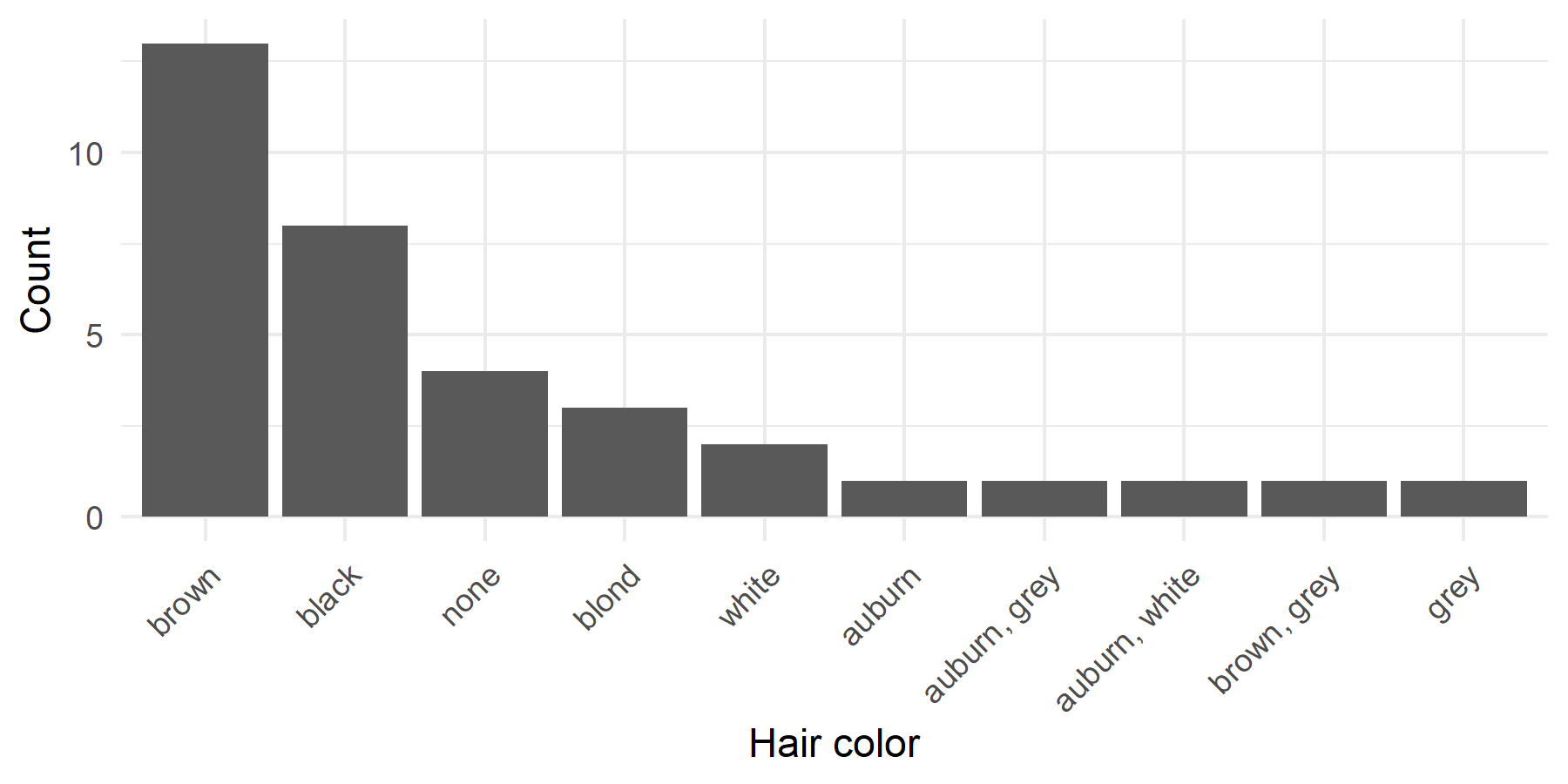
# b) Lump and tabyl
humans %>%
  mutate(hair_color = fct_lump_n(hair_color, n = 3, other_level = "Other")) %>%
  tabyl(hair_color, show_na = FALSE)
hair_color n percent
black 8 0.2285714
brown 13 0.3714286
none 4 0.1142857
Other 10 0.2857143# c) Rename gender
humans %>%
mutate(
gender_renamed = fct_recode(
gender,
"female" = "feminine",
"male" = "masculine"
)
) %>%
tabyl(gender_renamed) gender_renamed n percent
female 9 0.2571429
male 26 0.7428571Practical Applications
Factors in ggplot2
The level order determines the arrangement in graphics:
# Sensible order for bar chart
humans %>%
  filter(!is.na(eye_color)) %>%
  mutate(eye_color = fct_infreq(eye_color)) %>%  # By frequency
  ggplot(aes(x = eye_color, fill = eye_color)) +
  geom_bar() +
  coord_flip() +  # Horizontal bars
  labs(
    title = "Eye Colors of Star Wars Humans",
    x = NULL,
    y = "Count"
  ) +
  theme_minimal() +
  theme(legend.position = "none")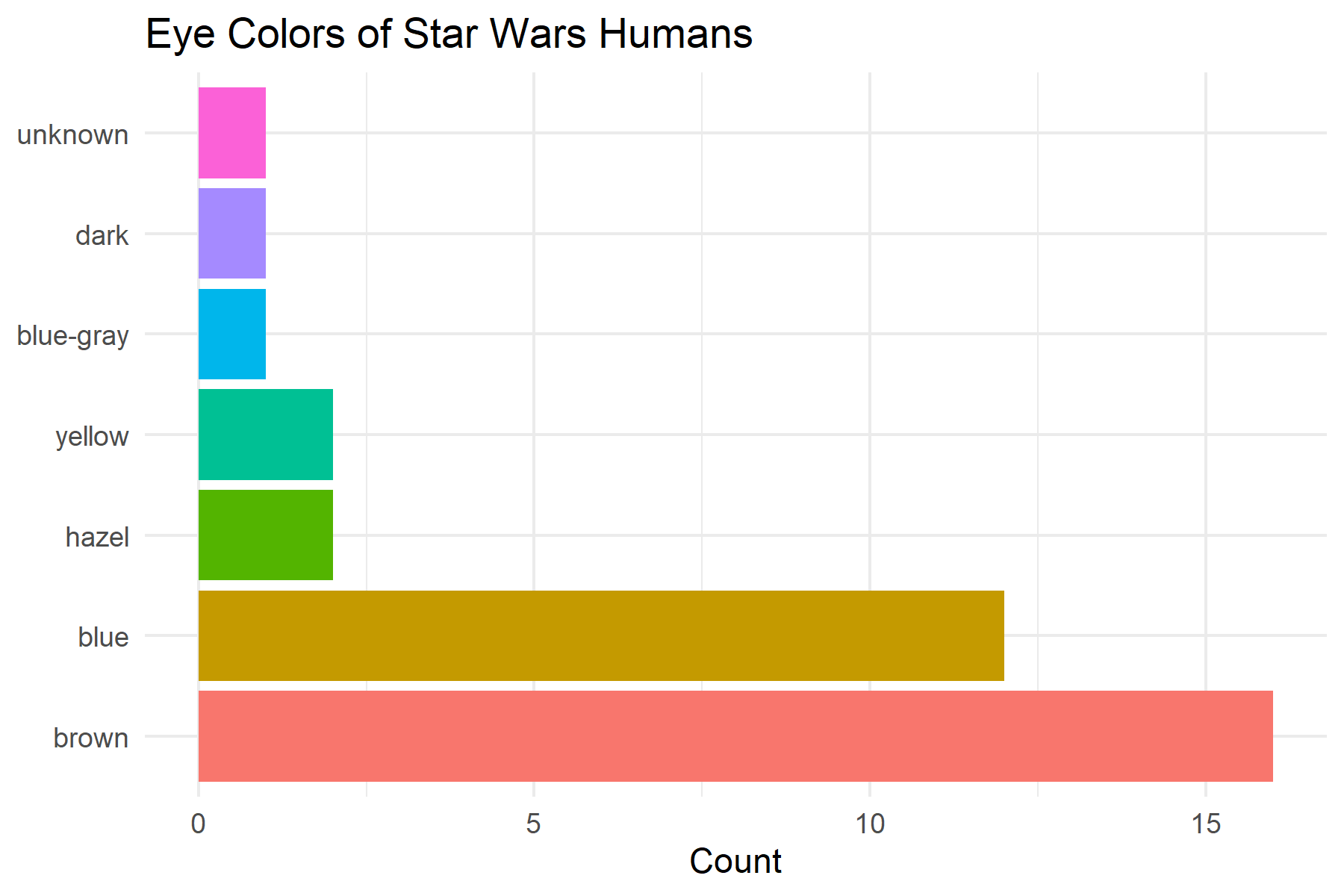
With horizontal bar charts, you often want the most frequent category at the top. For this, combine fct_infreq() with fct_rev():
humans %>%
  filter(!is.na(eye_color)) %>%
  mutate(eye_color = fct_rev(fct_infreq(eye_color))) %>%  # Reversed
  ggplot(aes(x = eye_color, fill = eye_color)) +
  geom_bar() +
  coord_flip() +
  labs(
    title = "Most Frequent Category on Top",
    x = NULL,
    y = "Count"
  ) +
  theme_minimal() +
  theme(legend.position = "none")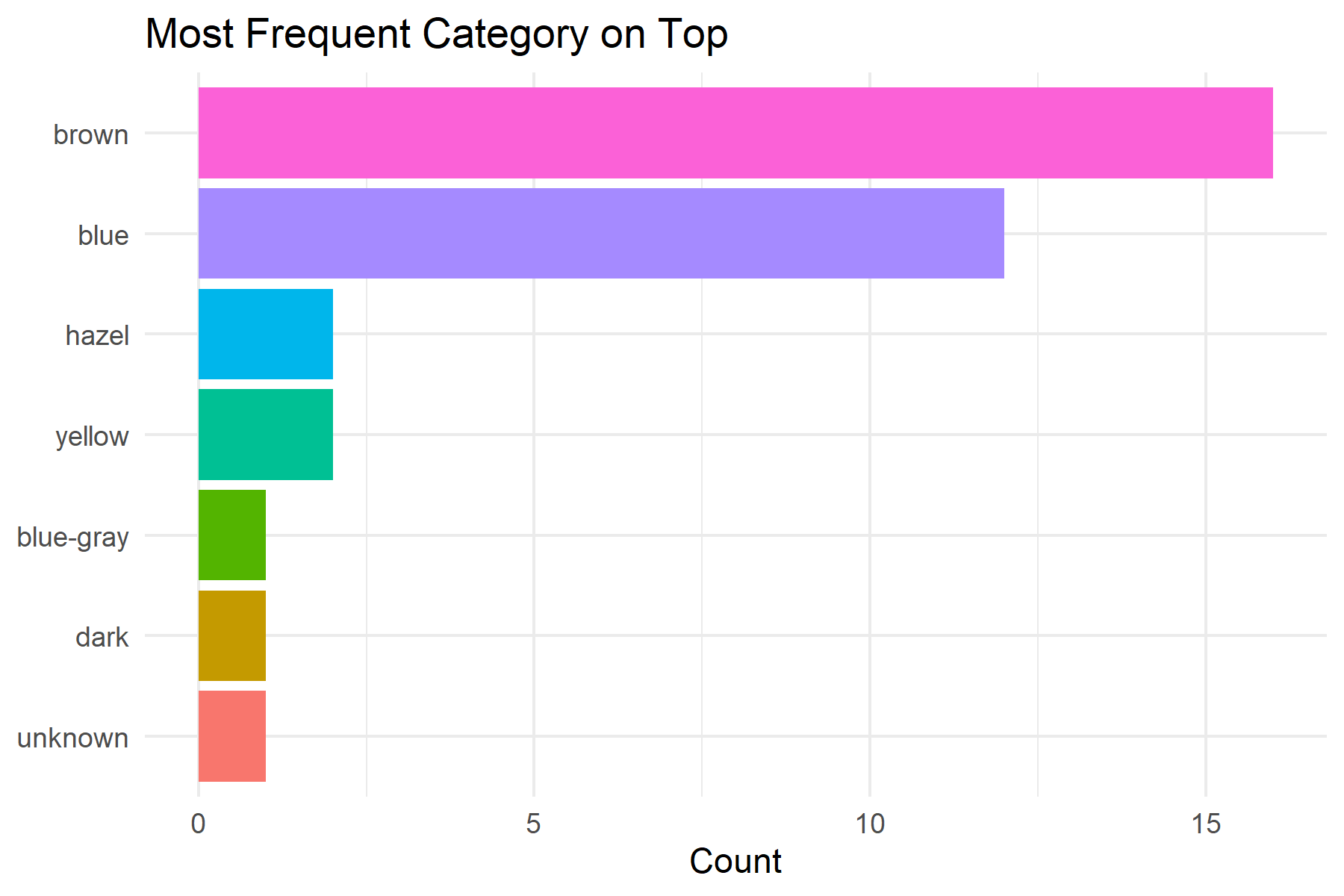
Factors in tabyl()
tabyl() also respects the level order:
 eye_color  n    percent
      blue 12 0.34285714
 blue-gray  1 0.02857143
     brown 16 0.45714286
      dark  1 0.02857143
     hazel  2 0.05714286
   unknown  1 0.02857143
    yellow  2 0.05714286
# With factor: by our order
humans %>%
mutate(eye_color = fct_relevel(eye_color, "brown", "blue")) %>%
tabyl(eye_color) eye_color n percent
brown 16 0.45714286
blue 12 0.34285714
blue-gray 1 0.02857143
dark 1 0.02857143
hazel 2 0.05714286
unknown 1 0.02857143
yellow 2 0.05714286# By frequency
humans %>%
mutate(eye_color = fct_infreq(eye_color)) %>%
tabyl(eye_color) eye_color n percent
brown 16 0.45714286
blue 12 0.34285714
hazel 2 0.05714286
yellow 2 0.05714286
blue-gray 1 0.02857143
dark 1 0.02857143
unknown 1 0.02857143This is particularly useful for reports where the order of categories should have a substantive meaning (e.g., “excellent”, “good”, “satisfactory”, “poor”).
Summary
Factors are more powerful than simple character variables because they store a defined set of categories with a specific order.
Character vs. Factor:
| Aspect | Character | Factor |
|---|---|---|
| Stores | Only text | Text + levels + order |
| Sorting | Alphabetical | By level order |
| Unknown values | Allowed | Become NA (if not in levels) |
| Use case | Free text | Categories with fixed values |
When Character, When Factor?
- Character: Free text, names, IDs, comments
- Factor: Categories with defined values (gender, Likert scales, regions)
Key forcats Functions:
| Function | Purpose |
|---|---|
fct_relevel() |
Manually reorder levels |
fct_reorder() |
Sort by numerical variable |
fct_infreq() |
Sort by frequency |
fct_rev() |
Reverse order |
fct_lump_n() |
Combine rare into “Other” |
fct_collapse() |
Combine multiple levels |
fct_recode() |
Rename levels |
Typical Workflow for Graphics:
Further Resources:
Citation
@online{schmidt2026,
  author = {{Dr. Paul Schmidt}},
  publisher = {BioMath GmbH},
  title = {5. {Factors}},
  date = {2026-08-14},
  url = {https://biomathcontent.netlify.app/content/r_more/05_factors.html},
  langid = {en}
}