Body text (Normal)
For scientific reports, consider:
- Font: Arial, Calibri, or Times New Roman (11–12pt)
- Line spacing: 1.15 or 1.5 for readability
- Space after: 6–10pt between paragraphs
- Justification: Left-aligned or justified
Professional formatting with reference documents
February 7, 2026
The default Word output from Quarto is functional but generic. The fonts, spacing, and heading styles are unlikely to match your organization’s requirements. In this chapter, you will learn how to use Word templates to create professionally formatted documents with consistent branding.
Quarto uses a “reference document” approach for Word formatting. The idea is simple:
.qmd file, it applies the styles from your templateImportantly, Quarto does not copy content from your template — only the style definitions. This means your template can be a mostly empty document that just defines how Heading 1, Heading 2, Normal text, etc. should look.
First, let Quarto create a default template that you can modify:
Alternatively, simply render any Quarto document to Word — the resulting .docx file can serve as your starting point.
Open the template in Microsoft Word and modify the built-in styles. The most important ones are:
| Style name | Used for |
|---|---|
| Normal | Body text |
| Heading 1 |
# headings |
| Heading 2 |
## headings |
| Heading 3 |
### headings |
| Title | Document title from YAML |
| Author | Author from YAML |
| Date | Date from YAML |
| First Paragraph | First paragraph after a heading |
| Source Code | Code chunks (when shown) |
| Verbatim Char | Inline code |
To modify a style in Word:
Alt+Ctrl+Shift+S or find it in the Home tab)Pay special attention to paragraph spacing. The “Space After” setting for Normal and Heading styles significantly affects readability.
Save your modified template (e.g., as my_template.docx) in your project folder. Then reference it in your YAML header:
When you render, Quarto will apply your custom styles.
For scientific reports, consider:
Create visual hierarchy:
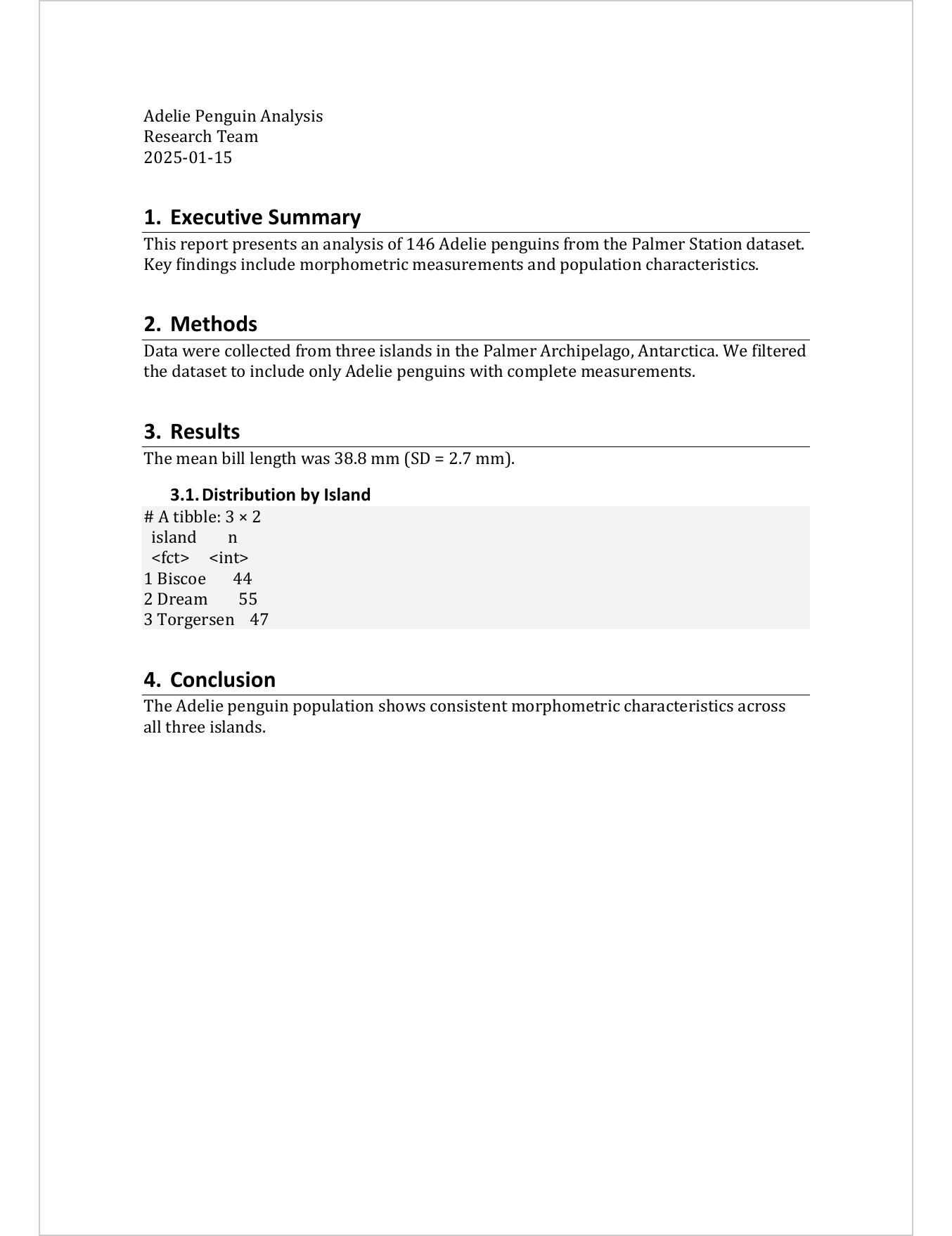
If you want numbered headings (1., 1.1., 1.1.1., etc.), configure this in Word’s heading styles, not in Quarto. In the style settings, click Format → Numbering and set up multilevel numbering.
If you show code in your reports (echo: true), customize the Source Code style:
For team projects, I recommend keeping templates in a dedicated folder:
my_project/
├── report.qmd
├── templates/
│ └── company_template.docx
└── data/
└── penguins.csv
Then reference it with a relative path:
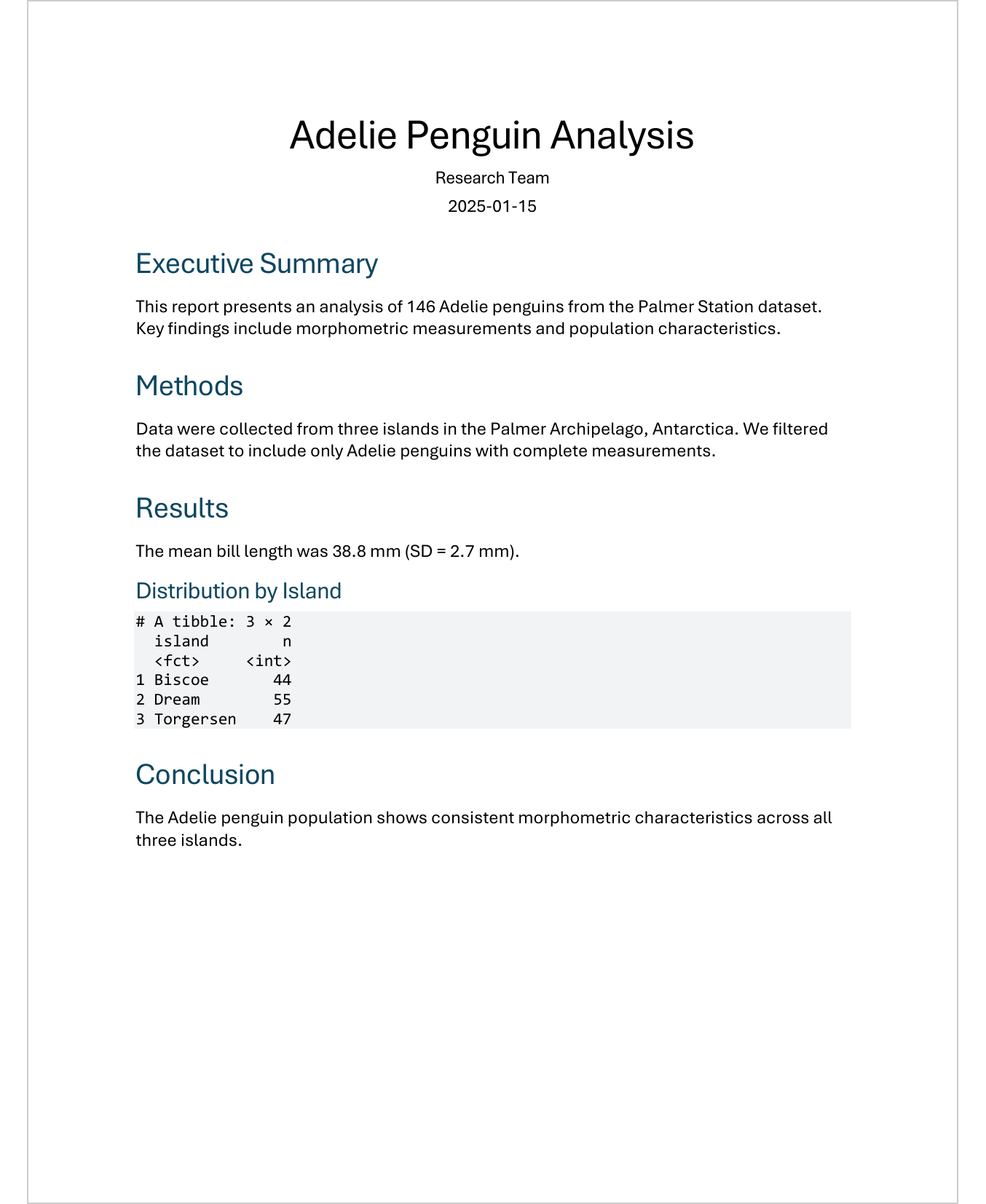
Here is a complete document using a custom template:
---
title: "Adelie Penguin Analysis"
author: "Research Team"
date: today
format:
docx:
reference-doc: templates/company_template.docx
execute:
echo: false
warning: false
message: false
---
```{r}
#| label: setup
#| include: false
library(tidyverse)
library(palmerpenguins)
adelie <- penguins %>%
filter(species == "Adelie") %>%
drop_na()
```
# Executive Summary
This report presents an analysis of 146 Adelie penguins from the Palmer Station dataset. Key findings include morphometric measurements and population characteristics.
# Methods
Data were collected from three islands in the Palmer Archipelago, Antarctica. We filtered the dataset to include only Adelie penguins with complete measurements.
# Results
The mean bill length was 38.8 mm (SD = 2.7 mm).
## Distribution by Island
```{r}
#| label: island-counts
adelie %>%
count(island)
```
# Conclusion
The Adelie penguin population shows consistent morphometric characteristics across all three islands..qmd file locationNot everything in Quarto maps to Word styles. Tables and figures have limited style control through templates alone. We will address these in Chapters 5 and 6 using flextable and ggplot2 options.
.docx filemy_template.docx
reference-doc: my_template.docx to your YAML headerYour documents now have professional formatting. But the default table output (like the count() result above) still looks like plain console output. In Chapter 5, we will learn how to create publication-ready tables using the flextable package.
@online{schmidt2026,
author = {{Dr. Paul Schmidt}},
publisher = {BioMath GmbH},
title = {4. {Word} {Templates}},
date = {2026-02-07},
url = {https://biomathcontent.netlify.app/content/quarto/04_word_templates.html},
langid = {en}
}
---
title: "4. Word Templates"
subtitle: "Professional formatting with reference documents"
---
The default Word output from Quarto is functional but generic. The fonts, spacing, and heading styles are unlikely to match your organization's requirements. In this chapter, you will learn how to use Word templates to create professionally formatted documents with consistent branding.
```{r}
#| label: qrt-template-setup
#| include: false
library(tidyverse)
library(palmerpenguins)
adelie <- penguins %>%
filter(species == "Adelie") %>%
drop_na()
```
# How Word templates work
Quarto uses a "reference document" approach for Word formatting. The idea is simple:
1. You create (or modify) a Word document with the styles you want
2. You tell Quarto to use this document as a template
3. When Quarto renders your `.qmd` file, it applies the styles from your template
Importantly, Quarto does not copy content from your template — only the **style definitions**. This means your template can be a mostly empty document that just defines how Heading 1, Heading 2, Normal text, etc. should look.
# Creating your first template
## Step 1: Generate a base template
First, let Quarto create a default template that you can modify:
```bash
quarto pandoc -o my_template.docx --print-default-data-file reference.docx
```
Alternatively, simply render any Quarto document to Word — the resulting `.docx` file can serve as your starting point.
## Step 2: Modify styles in Word
Open the template in Microsoft Word and modify the built-in styles. The most important ones are:
| Style name | Used for |
|------------|----------|
| **Normal** | Body text |
| **Heading 1** | `#` headings |
| **Heading 2** | `##` headings |
| **Heading 3** | `###` headings |
| **Title** | Document title from YAML |
| **Author** | Author from YAML |
| **Date** | Date from YAML |
| **First Paragraph** | First paragraph after a heading |
| **Source Code** | Code chunks (when shown) |
| **Verbatim Char** | Inline code |
To modify a style in Word:
1. Open the **Styles pane** (press `Alt+Ctrl+Shift+S` or find it in the Home tab)
2. Right-click on a style name
3. Select **Modify...**
4. Adjust font, size, spacing, color, etc.
5. Click **OK**
<!-- TODO: Add screenshot of Word Styles pane -->
:::{.callout-tip}
Pay special attention to **paragraph spacing**. The "Space After" setting for Normal and Heading styles significantly affects readability.
:::
## Step 3: Reference the template in your document
Save your modified template (e.g., as `my_template.docx`) in your project folder. Then reference it in your YAML header:
```yaml
---
title: "Penguin Report"
format:
docx:
reference-doc: my_template.docx
---
```
When you render, Quarto will apply your custom styles.
# Common style modifications
## Body text (Normal)
For scientific reports, consider:
- **Font**: Arial, Calibri, or Times New Roman (11–12pt)
- **Line spacing**: 1.15 or 1.5 for readability
- **Space after**: 6–10pt between paragraphs
- **Justification**: Left-aligned or justified
## Headings
Create visual hierarchy:
- **Heading 1**: Large (14–16pt), bold, perhaps colored, significant space before
- **Heading 2**: Medium (12–14pt), bold
- **Heading 3**: Same size as body, bold or italic
:::{.callout-note}
If you want numbered headings (1., 1.1., 1.1.1., etc.), configure this in Word's heading styles, not in Quarto. In the style settings, click **Format → Numbering** and set up multilevel numbering.
:::
## Code appearance
If you show code in your reports (`echo: true`), customize the **Source Code** style:
- Use a monospace font (Consolas, Courier New)
- Consider a light background color
- Smaller font size than body text (9–10pt)
# Project organization
For team projects, I recommend keeping templates in a dedicated folder:
```
my_project/
├── report.qmd
├── templates/
│ └── company_template.docx
└── data/
└── penguins.csv
```
Then reference it with a relative path:
```yaml
format:
docx:
reference-doc: templates/company_template.docx
```
# A practical example
Here is a complete document using a custom template:
````markdown
---
title: "Adelie Penguin Analysis"
author: "Research Team"
date: today
format:
docx:
reference-doc: templates/company_template.docx
execute:
echo: false
warning: false
message: false
---
```{r}
#| label: setup
#| include: false
library(tidyverse)
library(palmerpenguins)
adelie <- penguins %>%
filter(species == "Adelie") %>%
drop_na()
```
# Executive Summary
This report presents an analysis of `{r} nrow(adelie)` Adelie penguins from the Palmer Station dataset. Key findings include morphometric measurements and population characteristics.
# Methods
Data were collected from three islands in the Palmer Archipelago, Antarctica. We filtered the dataset to include only Adelie penguins with complete measurements.
# Results
The mean bill length was `{r} round(mean(adelie$bill_length_mm), 1)` mm (SD = `{r} round(sd(adelie$bill_length_mm), 1)` mm).
## Distribution by Island
```{r}
#| label: island-counts
adelie %>%
count(island)
```
# Conclusion
The Adelie penguin population shows consistent morphometric characteristics across all three islands.
````
# Troubleshooting
## Styles not applying
- Make sure you modified the **built-in styles** in Word, not just the text formatting
- Check that the style names match exactly (e.g., "Heading 1", not "Überschrift 1" in German Word)
- Re-render after saving the template
## Template not found
- Use relative paths from your `.qmd` file location
- Check for typos in the filename
- Ensure the template file is not open in Word (locked files cause errors)
## Some elements look wrong
Not everything in Quarto maps to Word styles. Tables and figures have limited style control through templates alone. We will address these in Chapters 5 and 6 using flextable and ggplot2 options.
:::{.callout-tip collapse="false"}
## Exercise: Create your own template
1. Render the example from Chapter 2 to Word
2. Open the resulting `.docx` file
3. Modify the Heading 1 style: make it blue, 16pt, bold
4. Modify the Normal style: change to Arial, 11pt, 1.15 line spacing
5. Save as `my_template.docx`
6. Add `reference-doc: my_template.docx` to your YAML header
7. Re-render and observe the changes
:::
# Further resources
- [Quarto Word Templates documentation](https://quarto.org/docs/output-formats/ms-word-templates.html)
- [Pandoc User's Guide: Custom styles](https://pandoc.org/MANUAL.html#custom-styles)
# What is next
Your documents now have professional formatting. But the default table output (like the `count()` result above) still looks like plain console output. In Chapter 5, we will learn how to create publication-ready tables using the flextable package.